

TMA Software for iPad
WebTMA Mobile
The WebTMA Mobile application allows technicians to review assigned tasks, enter labor and other costs, add non-work time, and mark work as finished.
Work is organized by Task. The app also supports microphone dictation for comments and provides search and filtering options for locating tasks.
Click the PDF link below for complete instructions.
Instructions for WebTMA mobile (PDF)
Home Page
The Home page provides at-a-glance information about Tasks and posted Labor.
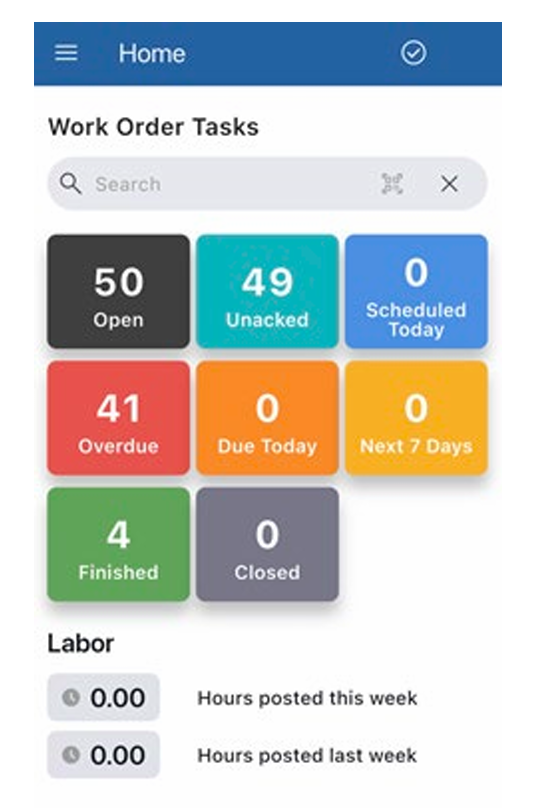
Tap a tile to display the tasks in that category. To view all open Work Orders, tap the Open tile or the WO Tasks icon on the taskbar at the bottom of the screen.
The taskbar also provides access to:
- Home – Return to the Home page.
- WO Tasks – Open the Work Order Tasks window and view all open Tasks.
- OTTO – Open the AI Assistant to ask questions about Work Orders. Questions can be entered by typing or speaking.
- Plus (+) – Open the Create Work Order page.
The hamburger menu provides access to additional areas, including Work Order Tasks, Non-Work Time, About, and Log Out. [uncg.webtm…le pdf.pdf]
How to Find Work Order Tasks
On the Home page, use the Search field to search for a record by:
- Work Order Number
- Task Code
- A word or character string, such as the Task name
You can also enter a partial number or name to locate a record.
On the Work Order Tasks window, use the Search field and filter buttons to narrow the Task list. Multiple filters can be applied.
To use the complete list of available filters:
- Open the Work Order Tasks window.
- Tap the All Search Options icon.
- Select the filters needed to narrow the Task list.
- Tap Done to apply the selections.
- Select Clear when you want to restore the list.
Individual filter buttons underneath the Search field can also be used. Active filter buttons change color to indicate they have been selected.
Work Order Tasks
The Work Order Tasks window displays open Tasks and provides several actions directly from the Task list.
Depending on the Task, available actions include:
- Acknowledge the Task to indicate that you have received or reviewed it.
- Start the Timer to track work time.
- Open Costs.
- Open Comments.
- Open Finish Task when available.
You can also tap a Task entry to open the Task Details window.
Task Details
Tap a Task in the Work Order Tasks window to open Task Details. The Task Details window can also be opened by tapping the Timer icon.
Scroll down to review information such as the Tag # and Requestor.
Tabs at the top of the Task Details window provide access to:
- Identity – Task details
- Task Check List – Checks or procedures associated with the Task, when available
- Comments
- Linked Documents
- Costs – Labor, Other Charge, and Material
A Timer is also available from Task Details. When started, your time is displayed at the bottom of the window along with Pause and End Timer controls.
How to Add Comments
WebTMA Mobile allows you to type or dictate Task and General comments.
- Open the Task.
- Tap the Comments icon.
- Select Task or General.
- Tap Add New Task Comment.
- Enter your comment.
- Optional: Tap the microphone icon to dictate the comment.
- Tap Save.
How to Add Photos and Documents
The Linked Documents tab allows you to:
- Take photos
- Record video
- Review linked documents
- Upload graphics or documents
WebTMA Mobile has a 10 MB upload limit for files.
Use All, Task, and WO to display files by category. The WO category displays files linked to the Work Order record.
How to Post Labor
Labor is now entered from the Task’s Costs area.
- Open the appropriate Task.
- Tap the Costs icon.
- Select the option to add Labor.
- Complete the required fields.
- Scroll down and add Comments, if needed.
- Select Save to save the labor entry, or Save & Finish if you are also ready to finish the Task.
The Costs area can also be used to enter Materials and Other Charges.
How to Post Materials
From the Costs tab, select the option to add Materials.
When connected to the internet, you can search for a part that is in stock. You can also enter the part name manually or by dictation.
Add comments if needed, then select:
- Save to save the entry, or
- Save & Finish to save the entry and proceed with finishing the Task.
How to Finish a Task
When adding Labor through Costs, you can also mark the associated Task as finished.
Select Finish or Save & Finish from a Cost entry window. Either option opens the Finish Task window.
Scroll down and enter any additional required information.
If costs have already been saved for the Task, those related costs are included when the Finish Task window is opened.
Working Offline
WebTMA Mobile can perform many functions when you are in an area without connectivity.
While offline, the app can save entries for:
- Creating a Work Order
- Posting Labor
- Posting Material
- Posting Other charges
An orange circle with a lightning bolt in the title bar indicates that the device is offline.
When connectivity is restored, queued records are uploaded.
View Queued Actions
Tap the orange offline indicator to view items waiting to upload.
You can also:
- Tap the hamburger menu.
- Select Sync Settings.
- Review the queued items.
While offline, queued lines can be deleted if an error was made. After an item uploads, you can swipe left to manually remove the line from the queue.
How to Create a Work Order
To submit a Work Order:
- Tap the Plus (+) icon on the taskbar.
- Select an Item or Location. One is required.
- If you select an Item, the Location fields are automatically completed.
- Tap Next.
- Complete the Work Order Details page.
- Tap Next.
- Complete the Task Info page.
- Tap Next.
- Optional: Attach images or files.
- Tap Submit.
The Work Order is then sent to the main application.
How to Create a Request
When you identify something that needs repair:
- Tap the Plus (+) icon on the taskbar.
- Select Create Request.
- Enter the Location.
- If the request concerns a specific Item, use Find and Add Item to select it.
- Tap Next.
- Enter the work needed in Action Requested. This field is required.
- Select the Request Type. This field is also required.
- Add other available information, such as Repair Center or Task, if needed.
- Tap Next.
- Select the Requestor. Associated contact information is displayed automatically when available.
- Tap Next.
- Attach documents or video if needed.
- Tap Save.
The request uploads when the device synchronizes with the database.